Written & Reviewed by


Bottom line: ChatGPT can help seniors understand letters, make checklists, write emails, compare options, and prepare for calls about Medicare, Social Security, housing, food, utilities, and other help. It can save time and lower stress, but it should never be your final source for eligibility, deadlines, or legal rights.
Important truth: Most help for seniors is not a direct cash grant. In real life, help often comes as insurance savings, food assistance, utility help, tax relief, rent help, home repair programs, transportation support, or local nonprofit aid. Tools like BenefitsCheckUp, the official USA.gov benefit finder, SHIP, my Social Security, and the Eldercare Locator are still where the real action happens. ChatGPT helps you use them better.
Start here
Start with one real problem: Do not ask ChatGPT, “What benefits do I get?” That is too broad. Start with one problem such as “I cannot afford my medications,” “I need help with rent,” “I need to understand this Medicare letter,” or “I want to know what programs may help a 72-year-old on Social Security.”
| Your situation | Ask ChatGPT to help with | Then take this real-world step |
|---|---|---|
| You do not know where to begin | Make a short list of the types of help to check first | Use a benefits screener, call 211, or contact your local aging office |
| You have a confusing letter | Explain it in plain English and pull out the deadline | Call the number on the letter or the official agency phone number |
| You are behind on bills | Make a crisis checklist for food, utilities, rent, and medicine | Call 211 and your utility, landlord, or local nonprofit right away |
| You need Medicare or Social Security help | Write questions before you call | Contact SHIP, Medicare, or Social Security for the final answer |
| You want tools on this site | Turn your problem into a search plan | Use our senior help tools to take the next step |
Best first move: If you do not know where to begin, call the Eldercare Locator at 1-800-677-1116. If you need local help with bills, food, or housing, call 211 or use United Way 211 to find local contact options.
Key takeaways
- ChatGPT is best used before you apply. It can help you get organized.
- Most senior help is a program, not a grant. Think benefits, discounts, subsidies, waivers, and local aid.
- Do not trust ChatGPT alone for eligibility. State, county, and program rules often vary.
- Desktop and laptop use can be easier for seniors. Bigger screens help with long letters, tables, and forms.
- Voice can help if typing is hard. OpenAI supports voice conversations on supported platforms, and both Windows voice typing and Apple Dictation offer dictation tools.
- Use ChatGPT to think, not to decide. Let it explain, summarize, draft, and organize. Then verify the real rule.
What ChatGPT can do well in the benefits and assistance world
ChatGPT is a strong helper for paperwork-heavy problems: The official help article says ChatGPT can answer questions, summarize information, draft and rewrite text, analyze files, and help with research and planning. That fits senior benefits and assistance work very well because most of the pain is not the program itself. The pain is the confusion around it.
| Task | What ChatGPT can do | What you still need to do |
|---|---|---|
| Understand a benefit letter | Explain it in plain English and turn it into a checklist | Check the original letter for deadlines, amounts, and phone numbers |
| Find possible programs | Suggest categories of help to look for | Use a real screening tool or agency office to search real programs |
| Prepare to call an agency | Write a short question list and phone script | Call the real office and write down the answer |
| Prepare an application | Make a document checklist and timeline | Complete the official application |
| Write an appeal or complaint | Draft a calm, clear letter | Check the facts, dates, and attachments before sending |
| Compare options | Put choices into a simple table | Verify each option with the actual program |
In simple words: ChatGPT helps most with understanding, organizing, drafting, comparing, and planning. It is not a caseworker. It is not a lawyer. It is not the agency.
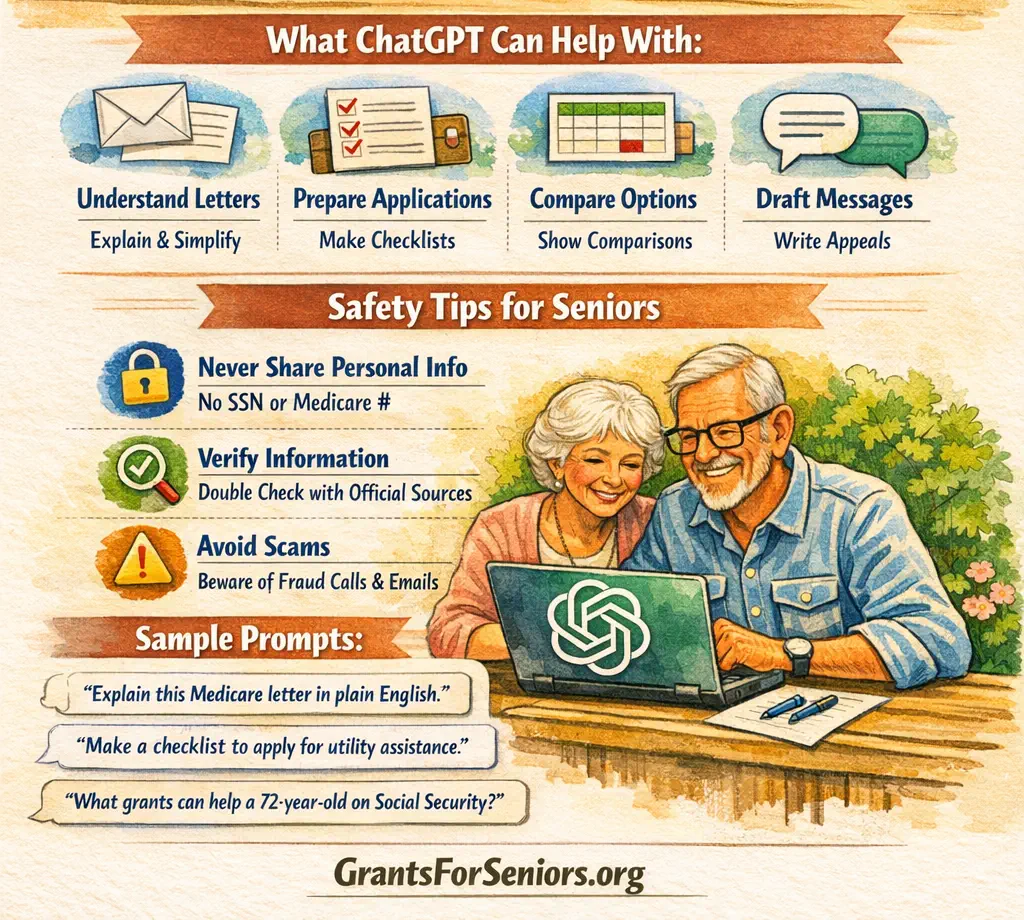
What ChatGPT cannot do for you
Know the real answer in every case: Benefits rules can change by state, county, age, disability, immigration status, housing type, household size, or timing. ChatGPT can point you in the right direction, but it can still give a wrong answer that sounds smooth.
Submit your application to the real program: It cannot file your SNAP application, approve Medicaid, lower your Medicare premium, award you a housing voucher, or make a local office move faster.
See your account unless you tell it: It does not know your Medicare account, Social Security record, or utility balance unless you paste information in. Do not paste sensitive information like your Social Security number, Medicare number, banking details, full account number, or passwords.
Protect you from scams by itself: The FTC scam warning says cloned voices and fake urgent calls can be used to trick people. ChatGPT can help you think through a suspicious message, but you still need to verify using a phone number or website you already trust.
How to actually use ChatGPT for grants, benefits, and assistance
Use the device you already handle best: Many seniors will do better on a desktop or laptop because long answers, letters, and tables are easier to read there. Tablets can also work well. Phones are useful for quick questions, voice use, and help from a relative or caregiver.
| If you want to do this | Do this | Best device |
|---|---|---|
| Read and compare benefit information | Open ChatGPT in your browser and use a larger screen | Desktop or laptop |
| Use a simpler app layout | Install the official ChatGPT app from your device’s app store | Tablet or phone |
| Talk instead of type | Use voice mode on a supported device | Phone, tablet, or computer with microphone |
| Dictate text into ChatGPT | Use Windows voice typing or Apple Dictation | Any device that supports dictation |
| Keep one long project together | Use Projects if your account supports it | Desktop or laptop |
Simple process:
- Choose one problem. Example: “I need help paying Medicare costs.”
- Ask ChatGPT to explain the issue.
- Ask it to make a checklist.
- Ask what documents you should gather.
- Ask what official source to use next.
- Then go to that official source.
Real-world use cases by income level and life situation
Not every reader is low-income: Some seniors come for urgent benefits. Some come for planning help. Some want to help a spouse, sibling, tenant, or parent. ChatGPT can be useful across all of those cases.
| Senior situation | Main problem | How ChatGPT helps |
|---|---|---|
| Very low-income senior | Needs food, utility, or Medicare cost help fast | Explains notices, builds a survival checklist, prepares benefit screening questions |
| Low-income senior | Confused by drug costs, SNAP, rent, or utility help | Drafts scripts, explains letters, organizes documents, compares help options |
| Moderate-income senior | Needs property tax relief, home repair help, Medicare savings, or rental-gap planning | Builds a cash-flow plan, makes question lists, compares programs and timing |
| Upper-middle-income senior | Needs help with care costs, veteran benefits, or support for a spouse or sibling | Organizes notes, prepares questions, drafts outreach messages, compares next steps |
| Higher-income senior | Values time, not just money, and wants cleaner planning | Summarizes long information, drafts professional questions, saves time before meetings |
Very low-income senior using ChatGPT before screening for benefits
- Example: A 74-year-old widow lives alone on Social Security. Her utility bill is late. She is skipping medication because money is short. She does not know whether to look for food help, utility help, Medicare cost help, or all three.
- How ChatGPT helps: She asks, “Make me a short checklist of programs to check first if I am 74, live alone, and I am behind on electricity and medication costs.” ChatGPT may suggest looking at food help, utility help, Medicare cost help, and local aging services.
- What she does next: She uses a benefits screener, then calls 211 and the Eldercare Locator if she needs local aging services.
- How this may save money: Faster action may help avoid late fees, shutoff fees, and missed opportunities.
- How this may go wrong: If she asks a vague question and trusts the answer without checking the real program, she may waste time on the wrong path.
Low-income senior trying to understand Medicare and pharmacy costs
- Example: A 70-year-old man gets Social Security and a small pension. He keeps getting confused by pharmacy printouts and Medicare letters.
- How ChatGPT helps: He can say, “Explain this Medicare letter in simple English. Tell me what I need to do first. Then make a short list of questions for SHIP.”
- What he does next: He contacts his local SHIP, which offers free Medicare counseling, or uses the Medicare contact page to reach 1-800-MEDICARE.
- How this may save money: Better questions may lead to help with plan choices, cost-saving programs, or billing confusion.
- How this may go wrong: If he treats ChatGPT like the final Medicare authority, he may rely on a general answer instead of his actual plan details.
Moderate-income senior with pension and one rental property
- Example: A 70-year-old retiree lives alone, gets pension income, and receives rent from one small apartment. Life is stable, but one big repair, one vacant month, or one hospital bill could change that. This person may not qualify for many low-income programs, but may still qualify for property tax relief, veteran benefits, home repair help, energy programs, or Medicare cost savings depending on the facts.
- How ChatGPT helps: It can create a “what should I check?” list, explain what kinds of assistance are worth looking into, and build a reserve plan for repairs and medical costs.
- What this person does next: Checks local property tax programs and asks ChatGPT to prepare a clear list of questions before calling the county or SHIP.
- How this may save money: Better timing and cleaner planning may help avoid missed deadlines and rushed financial choices.
- How this may go wrong: If ChatGPT gives general tax or housing guidance and the retiree mistakes it for a local rule, that can create expensive mistakes.
Upper-middle-income senior helping a spouse or sibling
- Example: A retired teacher owns her home and is financially stable, but now her spouse needs more care and her sister in another state may need Medicaid or veteran-related help.
- How ChatGPT helps: It can organize care notes, compare which office to call first, draft emails to local agencies, and create a document list for a family meeting.
- What she does next: She checks local aging services, asks SHIP about Medicare questions, and uses official state or VA resources for the actual benefits.
- How this may save money: Good organization may reduce wasted travel, duplicate paperwork, and missed deadlines.
- How this may go wrong: If she lets summaries replace actual contracts, application instructions, or legal advice, mistakes can get expensive quickly.
Higher-income senior who wants to save time and think clearly
- Example: A retired executive may not qualify for many income-based programs, but still wants help understanding Medicare mail, comparing long-term care options, checking veteran benefits, or finding support for a disabled family member.
- How ChatGPT helps: It summarizes long information, creates question lists for professionals, and helps compare paths before meetings.
- What he does next: Uses ChatGPT to prepare, then goes to the real source such as Medicare, Social Security, USA.gov, or state program pages.
- How this may save money: It may reduce billable time with professionals because simple organizing work is already done.
- How this may go wrong: If ChatGPT creates false confidence, a polished but wrong summary can still lead to a costly choice.
The 15 most useful prompts for grants, benefits, and assistance programs
These prompts work best when you stay specific: Name the problem, your age, living situation, and the type of help you mean. Do not include private numbers, passwords, full account numbers, or logins.
| Goal | Prompt to copy |
|---|---|
| Understand a letter | “Explain this letter in simple English and tell me what I need to do first.” |
| Find the deadline | “Tell me the deadline, amount due, and what happens if I do nothing.” |
| Find program categories | “What kinds of programs should a 72-year-old living alone check for if rent and medication costs are too high?” |
| Prepare for benefits screening | “Make me a checklist of documents to gather before I use a benefits screener or apply for help.” |
| Prepare to call an agency | “Write a short phone script for calling about help with Medicare costs.” |
| Prepare to call 211 | “What should I say when I call 211 to ask about rent, food, and utility help?” |
| Use SHIP better | “Make me a short list of questions to ask SHIP about my Medicare costs.” |
| Draft an email | “Help me write a polite but firm email asking for information about this assistance program.” |
| Make a checklist | “Turn this into a short checklist I can follow this week.” |
| Compare options | “Put these three programs into a simple table with what they help with and what I should verify.” |
| Understand a denial | “Explain this denial letter in plain English and list the questions I should ask next.” |
| Draft an appeal start | “Help me draft a calm, clear first version of an appeal letter based on these facts.” |
| Build a crisis budget | “Make me a survival budget for this month with rent, utilities, food, and medicine first.” |
| Verify safely | “Which parts of this answer should I verify with the official source before I act?” |
| Keep private data safe | “Tell me what personal details I should remove before I paste this letter here.” |
Simple “to do this, do this” process
| If you want this result | Do this |
|---|---|
| Know what help to look for | Ask ChatGPT for program categories, then use a benefits screener or official benefits finder |
| Understand Medicare help | Ask ChatGPT to explain the issue, then contact SHIP or Medicare |
| Understand Social Security paperwork | Ask ChatGPT to summarize the letter, then use SSA’s phone help or your online account |
| Find local help | Ask ChatGPT what to ask for, then call 211 or your local aging office |
| Write a better email or complaint | Draft it with ChatGPT, then check names, dates, and facts before sending |
| Use less typing | Use voice mode or system dictation on your phone, tablet, or computer |
Related GFS guides to use with ChatGPT
ChatGPT works better when you give it a clear topic: Use it to organize your question, then read a focused guide for the program area you care about.
| If your main problem is | Use this GFS guide | How ChatGPT can help |
|---|---|---|
| Food costs | food programs | Make a grocery and food-help checklist before you call |
| Electric, gas, water, or internet bills | utility bill help | Draft questions for your utility or local agency |
| Rent or housing costs | housing and rent help | Compare local rent, voucher, and nonprofit paths |
| Medicare premiums or cost sharing | Medicare Savings Programs | Prepare questions for SHIP or Medicaid |
| Local nonprofit support | charities helping seniors | Write a short request message |
| Affordable senior housing | income-based apartments | Make a call list and document checklist |
| Classes or training | education options | Compare local, online, and college options |
| School funding | scholarships for seniors | Draft questions for a school aid office |
Warnings and common mistakes
Warning: Do not paste your Social Security number, Medicare number, full bank account number, credit card number, password, or account login into ChatGPT.
Warning: Do not use ChatGPT as your only answer for whether you qualify for a program. Rules can vary by state, county, year, household, and funding.
Warning: Do not trust a call, email, or text just because it sounds real. Scammers can make fake messages sound urgent and official.
Mistake: Asking broad questions like “What grants are available for seniors?” This often produces messy answers. A better question is: “What kinds of help should a 70-year-old renter on Social Security look for if food and utilities are hard to afford?”
Mistake: Letting a summary replace the real document. Always check the original for deadlines, amounts, appeal rights, official phone numbers, and required proof.
Mistake: Not asking ChatGPT what should be verified. That is one of the best follow-up prompts you can use.
Tips for safer and better results
- Stay specific. Age, living situation, state, household size, and problem type can matter.
- Ask for a checklist. Checklists are often more useful than long explanations.
- Ask for plain English. This cuts confusion fast.
- Ask what to verify. This makes the answer safer.
- Use official tools next. ChatGPT should push you toward real sources, not replace them.
- Use voice if typing is hard. Voice can help if your hands hurt or typing is slow.
- Use a bigger screen if you can. Long letters and tables are easier to manage there.
- Remove private details. If you paste a letter, take out account numbers, claim numbers, and personal IDs first.
Trusted resources to pair with ChatGPT
| Resource | What it helps with | Why it matters |
|---|---|---|
| BenefitsCheckUp | Find benefit programs by need and location | One of the best-known high-trust screening tools for older adults |
| USA.gov | Find government benefits and financial help | Official U.S. government source |
| SHIP | Free Medicare counseling | Trusted, local help for Medicare questions |
| Medicare | Official Medicare information and account help | Use this for real Medicare rules and actions |
| Social Security | Manage benefits, letters, and account questions | Use this for real SSA records and notices |
| Eldercare Locator | Find local aging services | Connects seniors to community help; call 1-800-677-1116 |
| United Way 211 | Local bill, housing, food, and crisis help | Simple local starting point; call 211 |
| Senior Planet | Free tech classes for older adults | Helpful for seniors who want support learning technology |
Phone scripts you can use
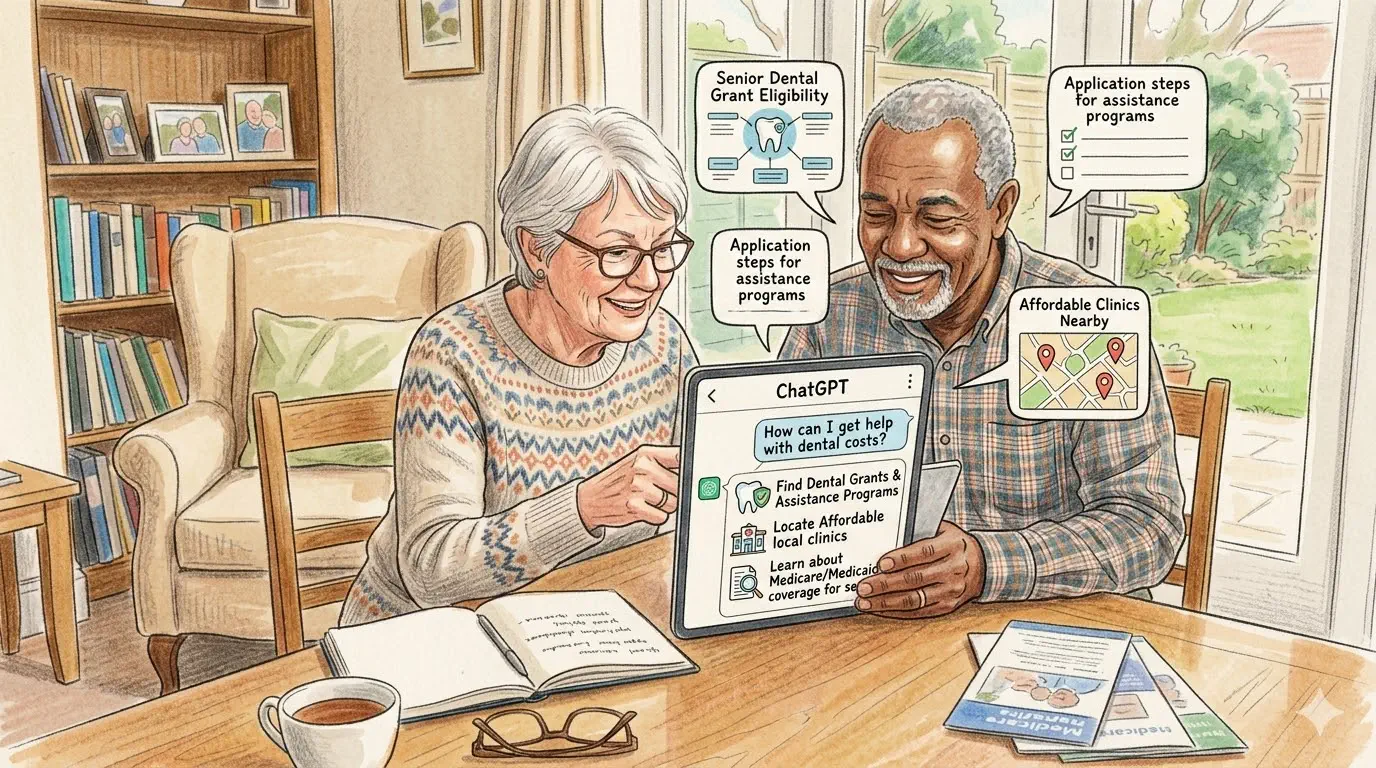
Tip: Before you call, ask ChatGPT to turn your problem into three short questions. Keep a pen and paper nearby. Write down the date, time, person’s name, and next step.
Script for calling 211 about urgent local help
Hello, my name is [name]. I am [age] and I live in [city or ZIP code]. I need help with [rent, food, utilities, medicine, or transportation]. Can you tell me which local programs are open now and what documents I should have ready?
Script for calling SHIP about Medicare costs
Hello, I have Medicare and I need help understanding my costs. I want to ask about Medicare Savings Programs, Extra Help, and whether my plan or drug costs should be reviewed. Can I make an appointment with a SHIP counselor?
Script for calling a utility company
Hello, I am a senior customer and I am having trouble paying my bill. Before any shutoff action, I want to ask about payment plans, hardship programs, senior protections, energy assistance referrals, and medical or weather-related protections.
Script for calling a housing office or nonprofit
Hello, I am looking for senior housing, rent help, or a waitlist I can join. Can you tell me what programs are open, whether seniors get any preference, what proof I need, and how I can check my status later?
Resumen en español
ChatGPT puede ayudar, pero no decide si usted califica: Puede explicar una carta, hacer una lista de documentos, preparar preguntas y escribir un correo. Pero las reglas reales vienen del programa oficial, la oficina local o la agencia estatal.
Empiece con un problema claro: No pregunte “¿Qué grants o beneficios hay para personas mayores?” Mejor diga: “Tengo 72 años, vivo solo y necesito ayuda con comida y la luz. ¿Qué tipos de programas debo revisar primero?” Después confirme todo con la oficina correcta.
No comparta datos privados: No ponga su número de Seguro Social, número de Medicare, contraseñas, datos bancarios o número completo de cuenta en ChatGPT. Si necesita ayuda con una carta, borre esos datos primero.
Para empezar: Llame al 211 para ayuda local, use el Eldercare Locator al 1-800-677-1116 para servicios de envejecimiento, o pida ayuda de Medicare por medio de SHIP. También puede revisar guías de GrantsForSeniors.org sobre ingresos y pobreza, ayuda dental, y home repair grants si esos temas aplican a su caso.
FAQ
Can ChatGPT tell me what benefits I qualify for?
Not safely by itself: It can help you think through what kinds of programs to check and what details matter, but it should not be trusted as the final answer on eligibility. A safer path is to use ChatGPT to prepare, then check with the real program.
Can ChatGPT help me apply for SNAP, Medicaid, Medicare help, or utility assistance?
Yes, but only as a helper: It can make a checklist, explain the form, and draft questions. It cannot submit the real application or guarantee that your answers are correct. You still need to use the actual program website or office.
Can ChatGPT write an appeal letter if I was denied help?
Yes, it can draft one: This is one of its best uses. But you must still check the dates, facts, reason for denial, and any documents you need to attach. A calm draft is useful. A wrong draft is risky.
What is the safest first website to pair with ChatGPT?
For broad benefit searching: Start with a trusted benefits screener or official government benefit finder. For Medicare, start with SHIP or Medicare. For Social Security, use your official Social Security account or call SSA.
What if I am not low-income?
You may still benefit: Some seniors look for property tax relief, veteran benefits, home repair support, caregiver help, Medicare cost counseling, or local services for a spouse or sibling. ChatGPT is also useful for planning and asking better questions even if you are not applying for income-based programs.
Should I use ChatGPT on my phone or on my computer?
Use the device that makes reading easiest: For long letters, tables, and side-by-side comparisons, a desktop or laptop is usually best. For quick questions, voice use, or help from a family member, a tablet or phone may be easier.
Can I use my voice instead of typing?
Yes: ChatGPT supports voice mode on supported platforms, and you can also use dictation tools built into your phone, tablet, or computer.
Can ChatGPT help me avoid scams related to benefits or grants?
It can help you spot red flags: You can paste in a message after removing private details and ask why it looks suspicious. But you should still verify with the real agency. Scam messages can sound official.
What should I never paste into ChatGPT?
Never paste: your Social Security number, Medicare number, bank logins, full credit card numbers, passwords, or anything you would not want copied or exposed. Remove personal details if you only need help understanding a letter.
Final thoughts
ChatGPT is at its best when it helps seniors get unstuck: It can explain, organize, draft, compare, and calm down a confusing problem. That makes it useful in the world of grants, benefits, and assistance programs, because those systems are often hard to understand and easy to delay.
But it has limits: It can point you in the right direction, but it does not replace the real rule, the real office, or the real application. The smartest way to use it is simple: ask ChatGPT to prepare you, then use the official program to act.
About this guide
We check this guide against official government, local agency, and trusted nonprofit sources. GrantsForSeniors.org is independent and is not a government agency.
Program rules, funding, and eligibility can change. Always confirm details with the official program before you apply.
See something wrong or outdated? Email info@grantsforseniors.org.
Editorial note: This guide is produced based on our Editorial Standards using official and other high-trust sources, regularly updated and monitored, but not affiliated with any government agency and not a substitute for official agency guidance. Individual eligibility outcomes cannot be guaranteed.
Verification: Last verified May 5, 2026. Next review September 5, 2026.
Corrections: Please note that despite our careful verification process, errors may still occur. Email info@grantsforseniors.org with corrections and we will respond within 72 hours.
Disclaimer: This article is for informational purposes only and is not legal, financial, medical, tax, disability-rights, immigration, or government-agency advice. Program rules, policies, and availability can change. Readers should confirm current details directly with the official program before acting.
Choose your state to see senior assistance programs, benefits, and local help options.
About the Authors